In this lesson, we will learn how to use TailwindCSS to create beautiful web pages. TailwindCSS is a popular, highly customizable, low-level CSS framework for building modern designs for web applications.
Unlike the traditional approach of writing CSS to style something on the web, TailwindCSS allows us to style our application using pre-existing classes.
Let's start by designing a Button component using inline CSS, and then we'll replicate the same design using TailwindCSS, highlighting the differences between the two approaches:
Now, let's proceed to the implementation of the same component, with the same styling, but this time using TailwindCSS:
As you can observe, we have created the same styled Button component with significantly less code. Let’s have a look at the classes that we have used in the above example:
px-1.5: Adds horizontal padding of 0.375rem(6px).py-2: Adds vertical padding of 0.5rem(8px).text-white: Sets the text color to white.bg-black: Sets the background color to black.border-none: Removes the border.rounded: Applies border-radius of 0.25rem(4px).cursor-pointer: Changes the cursor to a hand icon on hover.
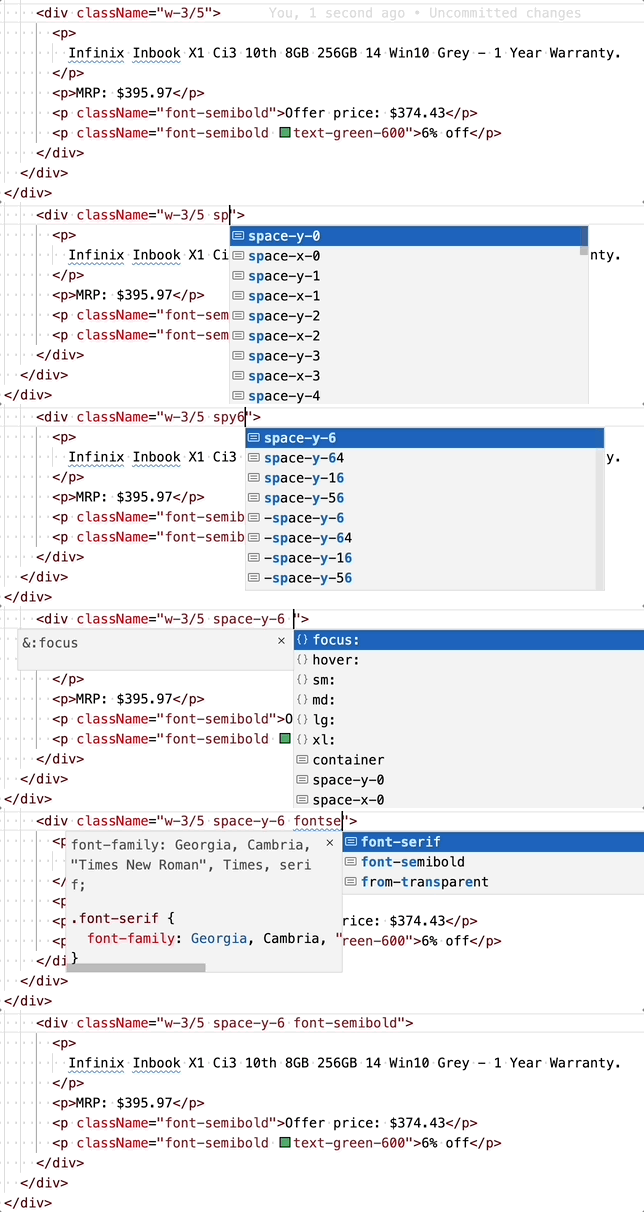
You can refer to the TailwindCSS official documentation to find the classes you need and understand what styles they apply, so you don't need to memorize all the classes. Additionally, you can install the TailwindCSS IntelliSense extension for Visual Studio Code from the VS Code Marketplace. This extension provides autocompletion and suggestions for TailwindCSS classes directly within your editor. So, you don't have to type everything manually, and it can actually make your development process faster and more efficient.
You might ask what these numbers (py-2, px-1.5) mean and how they connect with real-world units like px, rem, etc. In TailwindCSS, numbers in class names represent spacing or sizing values based on a predefined scale. By default, TailwindCSS uses a spacing scale that's defined in multiples of 0.25 rem. For example, pb-2 corresponds to padding-bottom: "0.5rem". We can customize the spacing scale inside the tailwind.config.js file to any value and any unit. If you're curious about customizing the default scale, you can explore this section of the TailwindCSS official documentation.
Let's see some of the benefits of using TailwindCSS:
-
Efficient Bundle Size: Tailwind has a built-in purging feature, which means that the unused styles are automatically removed from the final CSS bundle, resulting in a smaller file size for our application.
-
Time Efficiency: With Tailwind, we spend less time writing CSS classes from scratch. The ready-to-use classes cover a wide range of styling requirements, enabling us to style components quickly.
-
Minimal CSS Files: Since Tailwind relies on pre-existing classes, we don't need to maintain large CSS files. This makes our codebase cleaner and easier to manage.
-
Making changes feels safer: CSS is global, and we never know what we are breaking when we make a change. Classes in our HTML are local, so we can change them without worrying about something else breaking.
Setting up TailwindCSS in our project
-
Install TailwindCSS: Navigate to the root of the project directory and use the following command to install Tailwind CSS:
yarn add tailwindcss@2.2.17
Note that we are not using the latest version of TailwindCSS because the neetoUI component library is not compatible with versions above 2.2.17.
-
Configure Tailwind: Generate the TailwindCSS configuration files by running the following command:
npx tailwindcss init -p
This command will create tailwind.config.js and postcss.config.js files in the project root. These files are essential for configuring Tailwind's colors, sizes, and other settings.
Here, -p stands for PostCSS. It will generate a postcss.config.js file along with the tailwind.config.js file in your project root. The postcss.config.js file is where you can configure PostCSS plugins, such as TailwindCSS and autoprefixer, that will process your CSS files.
-
Import Tailwind Styles: To utilize TailwindCSS styles across the application, we need to import the core TailwindCSS styles into src/index.css, which serves as the main stylesheet for the project. For that, add the below lines to src/index.css:
/* Rest of the imports */
@import "tailwindcss/base";
@import "tailwindcss/components";
@import "tailwindcss/utilities";
It's important to note that we should import the index.css file into the application entry point, i.e. src/index.jsx.
-
Configure PostCSS: In the postcss.config.js file, configure the PostCSS plugins. This is necessary for processing TailwindCSS and other PostCSS transformations.
module.exports = {
  plugins: [
    require("postcss-import"),
    require("postcss-flexbugs-fixes"),
    require("postcss-preset-env")({
      autoprefixer: {
        flexbox: "no-2009",
      },
      stage: 3,
    }),
    require("tailwindcss")("./tailwind.config.js"),
    require("autoprefixer"),
  ],
};
-
Configure Prettier For Tailwind: We utilize a code formatter known as Prettier to automatically format our code, ensuring consistency and cleanliness. We are using a plugin called prettier-plugin-tailwindcss to automatically sort the CSS classes based on our recommended class order. To implement these settings when formatting your classes, please integrate the following configuration into your .prettierrc.js file.
module.exports = {
  tailwindConfig: "./tailwind.config.js",
  //...
};
Now that we have a foundational understanding of TailwindCSS, let's put our knowledge into practice by creating a product page, as showcased in the following image:
Let's break down the design:
The layout can be divided into two sections: the header and the product section. We can further divide the product section into two div elements: the first div for the product image and the second for product details. We can then align these two div elements side by side by wrapping them inside a parent div containing the class name flex.
Now, let's take a look at a few TailwindCSS classes that we have used to build this page:
gap-4: Sets a gap of 1rem(16px) between flex items.space-y-4: Adds vertical spacing of 1rem(16px) between direct child elements in a stack.
You can refer to the TailwindCSS official documentation or https://tailwind.build/classes for a more comprehensive list of classes.
Now, let's create the Product page in our SmileCart project. To do this, we'll begin by creating a components directory within the src folder. At BigBinary, we follow the convention of keeping all our components inside this components directory. You can create this directory by running the following command in your terminal from the root of the project:
Next, create a JSX file within the components folder and name it Product.jsx using the following command:
Now, copy the code given in the above example and paste it into the Product.jsx file.
Since our project supports the neetoUI component library, let's utilize it. Replace all
tags with tags from the neetoUI library with the appropriate style. To do so, you can refer to neetoUI documentation for Typography.
Now, let's import and use the Product component in the App.jsx file:
That's it! We've successfully added the product page to our SmileCart project.
Now, run the SmileCart project with yarn start. It will automatically open the browser and navigate you to http://localhost:3000, where you will find the product page.
Let's commit the new changes.
You can verify the changes here.