In this chapter, we will learn about the basics of some components and hooks
provided by the react-router-dom library. We will be using the v5 version of
the library in this book. It's worth mentioning that the latest version, v6,
which is the default installation, features functional differences in some
components compared to the previous version.
BrowserRouter component
The BrowserRouter is a router
implementation that uses HTML5 history API to keep the UI in sync with the URL.
It is the parent component used to store all the other components.
Usually, BrowserRouter is used in the main component or at the entry point of
the application. All the other components are added as the children for the
BrowserRouter component. The BrowserRouter keeps the UI in sync for all the
children components. If we want to use routing in a component then that
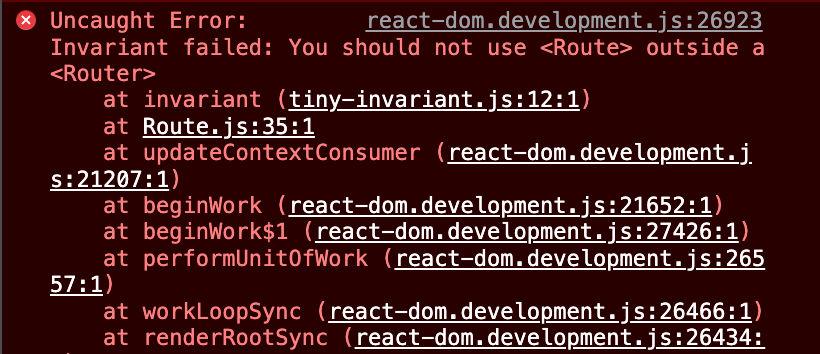
component should be a child of BrowserRouter component. When we try to use
react-router-dom components like Route, etc outside the BrowserRouter then
we will get an error mentioning "You should not use outside a ",
like this:
We should have only one BrowserRouter at the topmost level of the component
hierarchy tree with all the other components nested inside it. We should have a
single source of truth for updating the browser history. Each BrowserRouter
has its own history stack. If we use multiple BrowserRouter then the Routes
in the parent BrowserRouter will not work from the child BrowserRouter
component.
For example, let's say we have three components called App.jsx, About.jsx,
and Contact.jsx. We have defined a BrowserRouter component in App.jsx like
so:
So, as mentioned above we have two Route for paths /about and /contact.
About component will be rendered for the /about path and Contact component
will be rendered for the /contact path.
Now, let's say that in the About component we use another BrowserRouter and
define a Link for Contact component, like this:
Now when we click on the To contact page link defined in the About component
it will not work because for the BrowserRouter defined in the About
component we don't have any route defined for the /contact path. Hence, we
should use only one BrowserRouter at the entry point of the application.
Switch component
The Switch component renders the first matching child <Route> or
<Redirect>. The purpose of using Switch component is to render only one
matching <Route> or <Redirect> at a time.
For example, let's say we have defined some routes for About, User, and
NoMatch components, like this:
Now, if we go to /about path then all three components that are About,
User, and NoMatch will render because they all match the current location's
path. If we want to render only one component for the matching path then we
should use the Switch component, like this:
Now only one component will be rendered for the matching path. After using
Switch component, if we go to /about path then the first matching route that
is About component will be rendered.
There are a few scenarios where it may not be appropriate to use routes within a
Switch component in React:
-
If you do not need to display different components based on the URL path, then
using routes within a Switch may be unnecessary. For example, if you have a
simple application that only needs to display a single component, you can
avoid using routes and simply render the component directly.
-
Consider you need to display the same component for multiple URL paths. Using
multiple Route components within a Switch for the same component can cause
unnecessary rendering and may lead to performance issues.
The Switch component renders the component for the first matching route. So,
if there are multiple matches then the order in which the routes are defined
matters. To solve this problem, we should define the common or basic routes at
the end of the Switch component or we can use the exact prop. We have
discussed the exact prop in the next section.
Route component and associated props
The Route component is used to define a path that a user can navigate to and
the corresponding component that should be displayed when the path is matched.
It is typically used within a BrowserRouter component, which manages the
rendering of the components based on the current URL.
The usage of Route is straightforward.
In this example, the BrowserRouter component has three Route components as
children, each with a different path prop. When the user navigates to one of
these paths, the corresponding component will be displayed.
The Route component also has several other props that you can use to customize
its behavior. We will discover each of them in the coming sections.
exact prop
We can add the exact prop in the Route component so that it will match only
if paths are exactly the same.
For example, let's consider that we have two components Home and Dashboard
and we have defined the routes like this:
Now if we go to "/dashboard" path then Home component will be rendered.
Because "/" pattern is matching with the "/dashboard" path and it is defined
above the Dashboard route. So the first matching route is for the Home
component. There are two solutions to this problem. We can move the Dashboard
component route above the Home component route or we can use the exact prop in
the Home component route.
We can solve the above-mentioned problem using the exact prop like this:
Now, the Home component will be rendered only if there is an exact match with
the current location's path.
We should not use the exact prop in the routes if there are nested routes.
For example, let's say we have defined the routes like this:
And in the Dashboard component we have defined the routes like this:
Now if we go to the /dashboard/projects path then first the Dashboard
component will render and from the Dashboard component the /projects route
will be matched and the Projects component will be rendered. If we had used
the exact prop in the /dashboard route then the /dashboard/projects will
not match with the /dashboard path and nested routes will not work. So, we can
not use the exact prop if there are nested routes.
component vs render prop
The component and render are the props used in Route component. Both of
them help in rendering a component or JSX when the current location's path
matches.
For example:
But how can we pass some props into this Dashboard component?
You might be tempted to pass the props to an inline function within the
component prop of the Route, like shown below:
But if we pass an inline function to the component prop, then it would create
a new component on every render. This results in unmounting the existing
component and mounting the new component instead of just updating the existing
one. So this approach can be inefficient and will cause performance issues.
For passing custom props in the Dashboard component we can use the render
prop which accepts the inline functions for rendering, like this:
So, while adding routes if we want to render a component without any custom
props then we should use the component prop and if we want to use an inline
function or want to pass some custom props in the component then we should use
the render prop.
Link Component
The Link component in React Router is used to create a link to a specific
route within your application. It is similar to an a element in HTML, but
instead of navigating to a new page, it updates the URL and renders the
corresponding component for the new route within the same page.
Here's an example of how you might use the Link component in a React
application:
In this example, the Link components are used to create navigation links within
the application. When a user clicks on one of these links, the URL will be
updated and the corresponding component will be displayed.
The Link component has several props that you can use to customize its behavior,
such as the to prop, which specifies the route to link to, and the replace
prop, which specifies whether the new route should replace the current one in
the history stack.
Redirect component
The Redirect component in React Router is used to redirect the user to a
different route within your application. It is typically used when you want to
change the route based on some condition, such as when a form submission is
successful or when the user is not authenticated.
Here's an example of how you might use the Redirect component in a React
application:
In this example, the Redirect component is rendered if the isLoggedIn state
is true. When this happens, the user is redirected to the /dashboard route.
The Redirect component has several props that you can use to customize its
behavior, such as the to prop, which specifies the route to redirect to, and
the push prop, which specifies whether the new route should be added to the
history stack or replace the current one.
Some react-router hooks
The useHistory hook gives us access to the history instance that we can use to
navigate between pages. We can push the required path in the history instance
and the required page will be loaded by the router.
Let us see an example:
In the above example, when a user clicks on the button labeled "Go to Home", the
page corresponding to the path /home will be rendered.
windows.location.href is an alternative to history.push that developers
often tend to use or let's say "abuse". window.location.href is a property of
the location object that represents the current URL of the page. You can use it
to get the current URL or to navigate to a new URL. However, using
window.location.href to navigate to a new URL will cause the browser to reload
the page, which can be slower and less efficient than using history.push.
It is generally recommended to use history.push to navigate within a React
app, especially if you are using react-router-dom to handle routing. However,
there may be cases where using window.location.href is necessary, such as when
you need to open a new tab or window, or when you need to navigate to a URL that
is outside of your React app.
It is also common for developers to use both history.replace and
history.push methods in an application. However, it is crucial to understand
that these methods cannot be used synonymously. The router history in a web
application functions as a stack of routes. When history.replace is used, the
current top of the stack is overwritten with the new route, while history.push
adds a new route to the top of the stack. For instance, history.replace can be
employed when navigating from an invalid route to prevent the user from
navigating back to the invalid page. Hence, understanding the differences
between these two methods is essential in effectively manipulating the browser's
history stack in a web application.
The useLocation hook returns the location object that represents the current
URL. The location object consists of the following properties:
hash — (string) The URL hash (#) fragment.pathname — (string) The path of the URL.search — (string) The URL query string (?).
Consider a URL like https://example.com/path?key1=value1&key2=value2#fragment.
In this example, the URL has a path of /path, a query string of
key1=value1&key2=value2, and a hash fragment of fragment.
We can think about the useLocation hook as a useState that returns a new
location whenever the URL changes.
For example:
As you might have expected, whenever the URL changes, "URL changed" will be
logged into your browser.
The useParams hook gives us an object of key-value pairs of URL parameters.
Using the useParams hook we can access the parameter of the current route,
like this:
Here the current article slug will be stored in the variable slug.
The useRouteMatch hook attempts to match the current URL in the same way that
a Route would. It will contain the following properties:
isExact — (boolean) Check if the entire URL was matched.params — (object) Key/values pairs parsed from the URL.path — (string) The path pattern used to match.url — (string) The matched portion of the URL.
We should use the useRouteMatch when we need the match data without actually
rendering a Route.
For example:
Here match.params.slug provides the value for slug from the matched object.
In summary, React Router makes it easy to add routing to your React application,
allowing you to create complex, nested routing configurations with declarative,
component-based code. For more information on using React Router v5, you can
refer to the
official documentation