Task 8
Let's implement the following functionalities in the application:
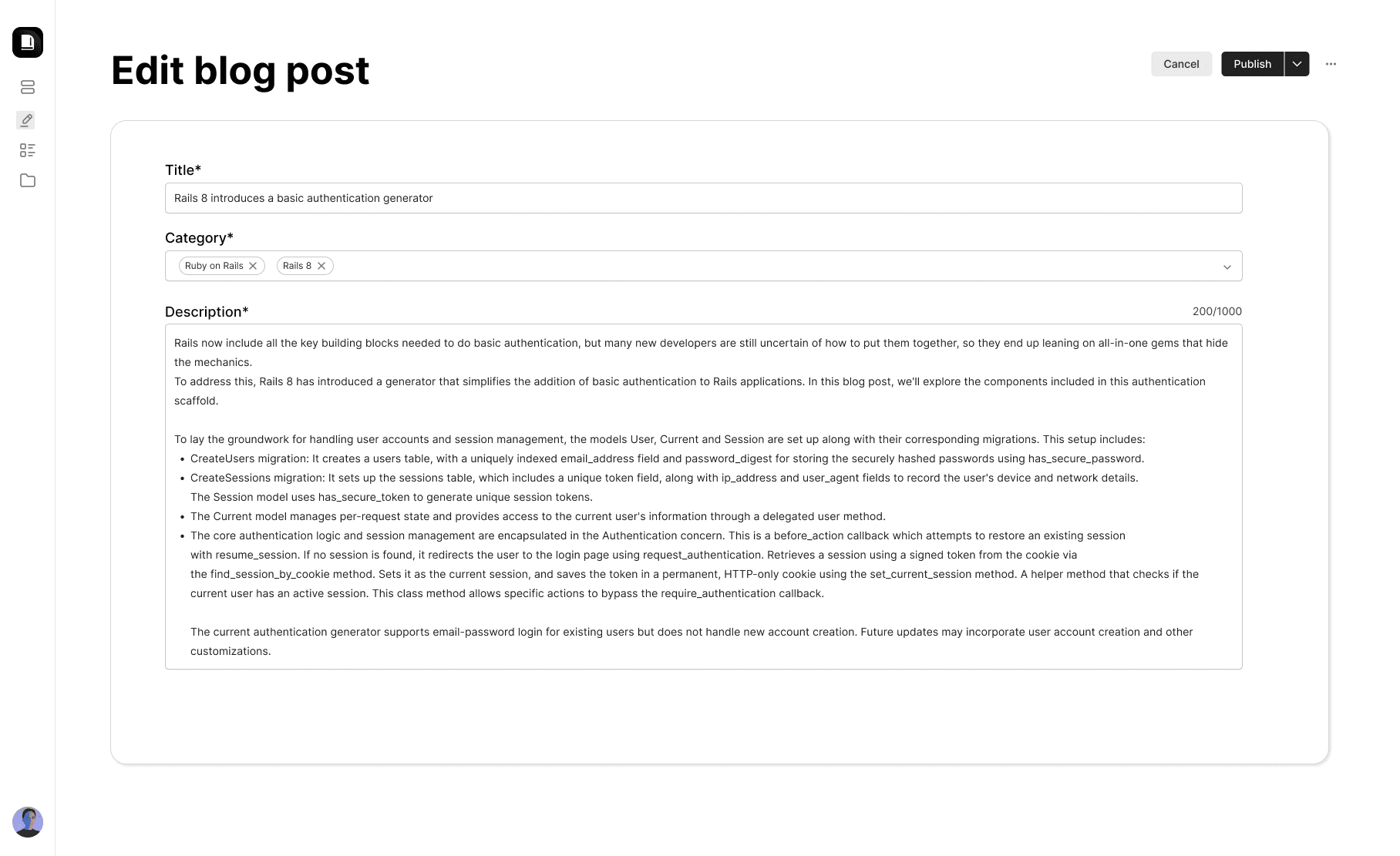
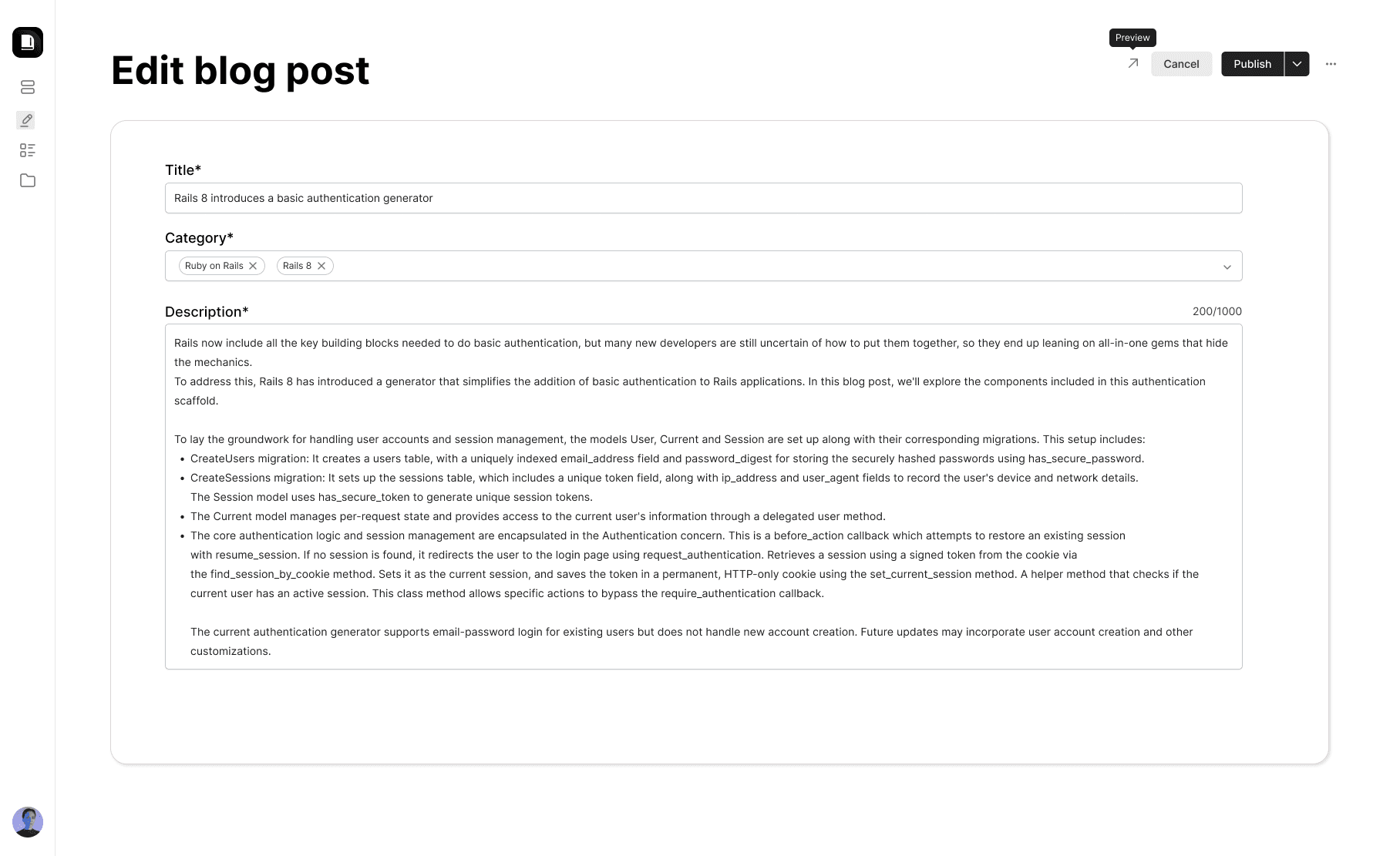
- Add a post edit page for updating existing posts.
- Make modifications to the
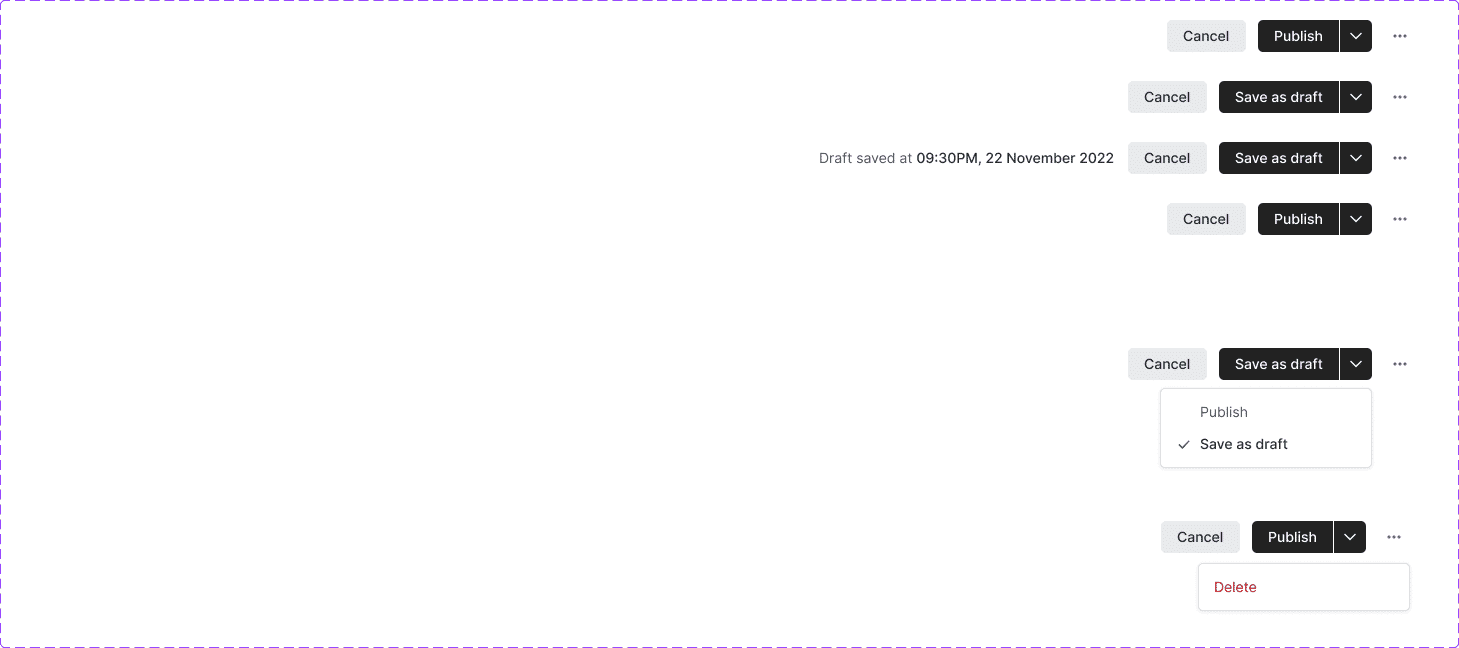
New blog post page and add a new header. In this header, an action dropdown should enable the user to either save the post as a draft using the Save as draft option or publish it using the Publish option. The same functionality must be present on the Edit blog post page. Additionally in the Edit blog post page, a horizontal menubar icon at the top right corner must be present to enable the user to delete the post in question.
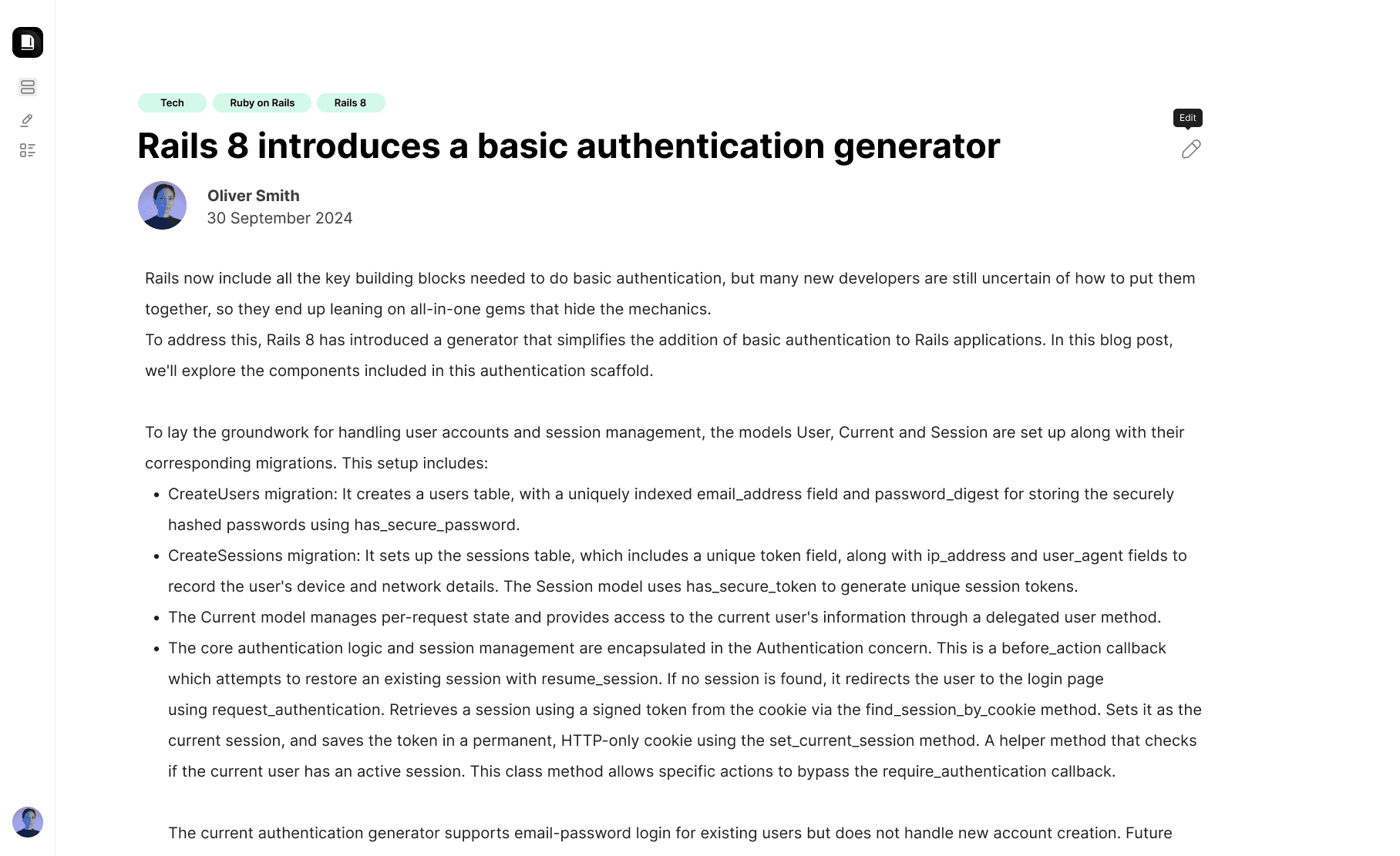
- Ensure that the user can edit their own blog post, from the view of blog post page. Also, change the date displayed on the blog post page to show the last published date instead of the creation date.
- Add a new item in the Navbar to view blog posts of the currently logged in user.
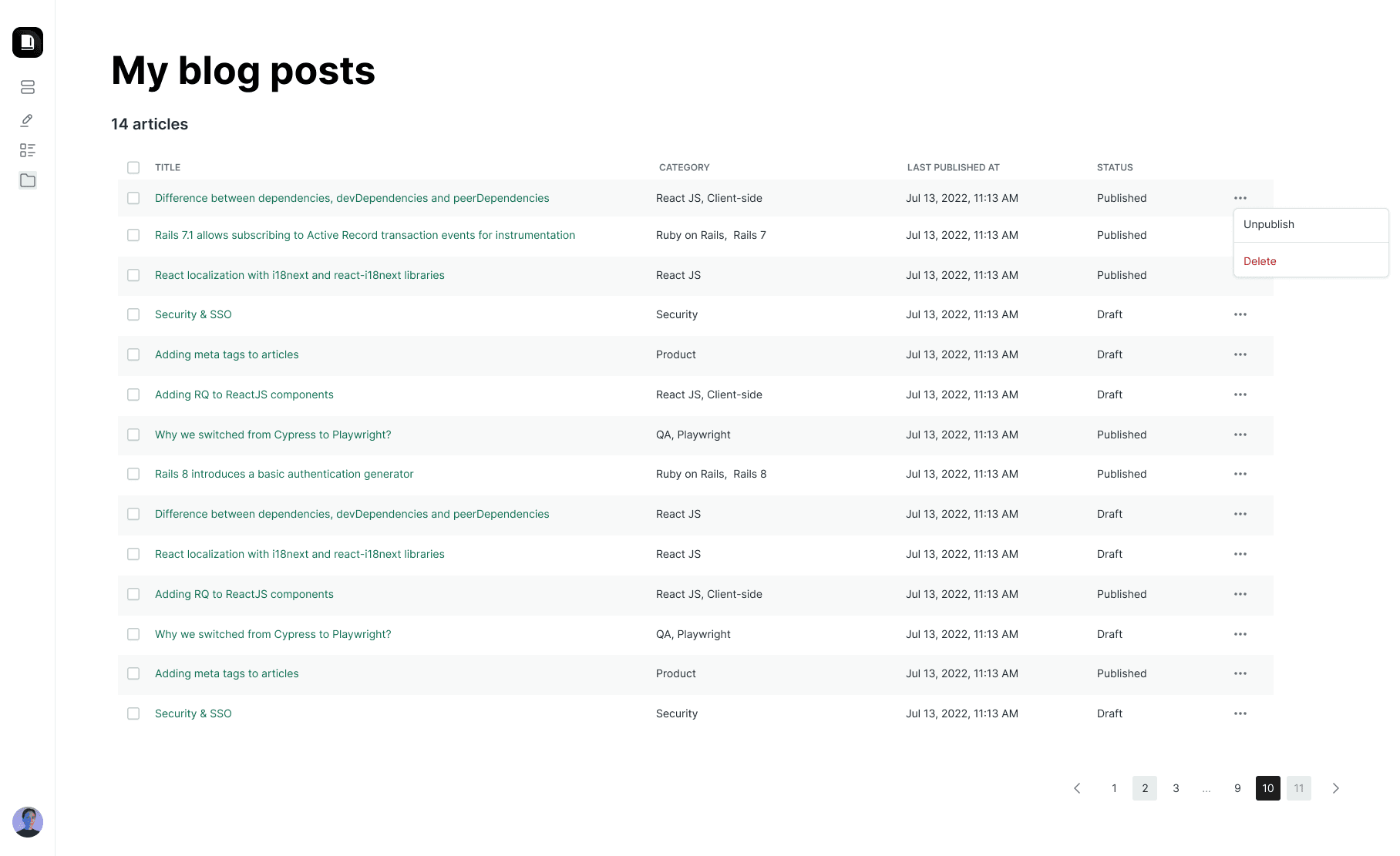
- Add a table in
My blog posts page with the following columns:
- The
title column houses the title of the post. If the title is too long it should be truncated and suffixed with an ellipsis. You can use a tooltip to display the expanded title when it is in the truncated form. The title should be a link to the edit page for that post.
- The
category column with the categories of the post.
- The
last published at column contains the date and time at which the post was last published. You should note that this column can have a valid value even when the post has a draft status.
- The
status column indicates the status of the post and can take two values: Draft and Published. Note that the status should be capitalized.
- The horizontal menu icon should be a dropdown with two items, that dynamically change with the status of the post.
- If the post is in
draft state, then Publish and Delete options should be available via dropdown. If the post is in a published state, then Unpublish and Delete options should be available via dropdown.
- Add a preview button for viewing blog post.
- If the blog post is in draft state, have a tag next to title to indicate the same.